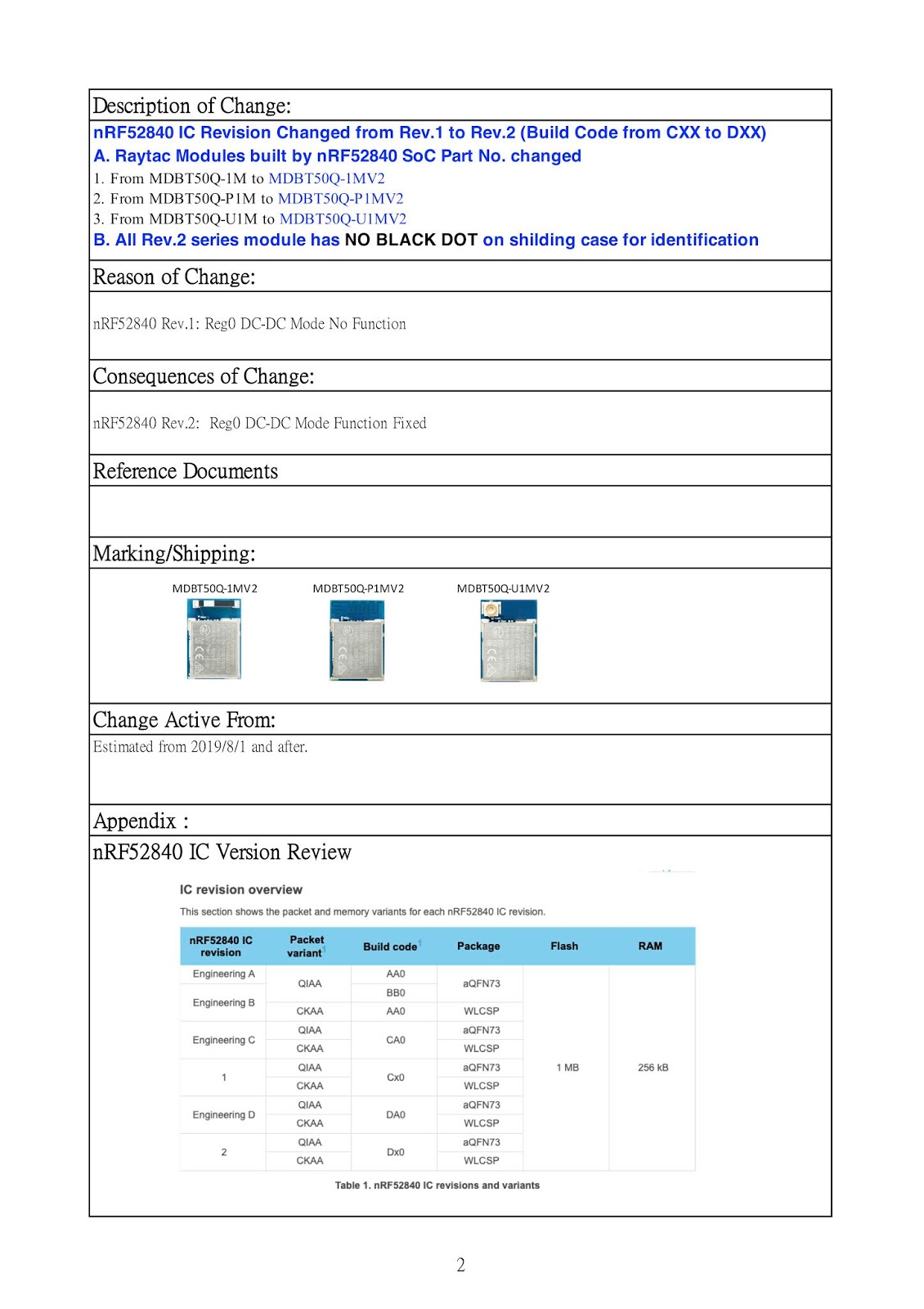
Nordic Semiconductor has updated nRF52840 SoC version from Rev.1 to Rev.2.
Raytac announced that the module built by nRF52840 with Rev.2 SoC now has started the mass production shipment.
Monday, June 17, 2019
Wednesday, May 22, 2019
Regulations, Certifications and Raytac's Modules - What do we make more convenient for our customers?
Raytac's pre-certified module for your convenience - but how?
So, in this post, we would like to take you on a little journey through most of the important certifications that Raytac has pre-certified their modules with.
The exact topic is actually what you need to know and what that means to you as a Raytac customer.
Obviously, each and every certification has their own rules, so that's how we're going to do this - one by one.
So for the FCC certification, you can as a Raytac customer:
What you will need to do is:
Firstly, for the wireless test, you can refer to Raytac's own certification report so that the lab knows the module itself has passed although it still needs to be tested.
Secondly, the for wire (IO port) test, you will have to do from scratch essentially.
Thus, even though we have applied for KC for our modules, you will still have to test them locally.
Thus, the procedure becomes:
When applying to this certification, you will be in either of these two circumstances:
As always - Happy tinkering everybody :)
So, in this post, we would like to take you on a little journey through most of the important certifications that Raytac has pre-certified their modules with.
The exact topic is actually what you need to know and what that means to you as a Raytac customer.
Obviously, each and every certification has their own rules, so that's how we're going to do this - one by one.
- FCC - (U.S.A.)
So for the FCC certification, you can as a Raytac customer:
- Use Raytac's certification ID directly on your finished product's label But you need to:
- Test FCC Part 15B EMC for your finished products
- IC - (Canada)
- Use Raytac's certification ID on your finished product's label (same as FCC) But, just like FCC, you need to:
- Test IC ES003 (EMC)
- This can be combined together with the FCC Part 15B test
- TELEC - (Japan)
What you will need to do is:
- Use Raytac's certification ID on your finished product's label
- KC - (South Korea)
- Test EMC for wireless (KN301489 - same as CE's EN301489)
- Test EMC for wire (IO port) (KN3235)
- If, and only if, your final product is equipped with IO ports, that is.
Firstly, for the wireless test, you can refer to Raytac's own certification report so that the lab knows the module itself has passed although it still needs to be tested.
Secondly, the for wire (IO port) test, you will have to do from scratch essentially.
Thus, even though we have applied for KC for our modules, you will still have to test them locally.
- CE (Radio Equipment Directive 2014/53/EU (RED)) - (EEA, Europe)
- Test on Conducted engineering sample (EN300328)
- You can refer to Raytac's test report, if the test lab accepts it, that is.
To ensure that they do, you can choose to conduct your tests at the same lab as Raytac - SGS.
- You can refer to Raytac's test report, if the test lab accepts it, that is.
- Test on Radiated engineering sample (EN300328)
- Test EMC (EN301489)
- Test Safety (EN60950)
- Subject to change to EN62368 in 2021
- SRRC
- Your end product can either be defined as a "Home Appliances" or an "Office Utilities" product
- Then you can simply refer Raytac's SRRC ID (module policy just like FCC/IC/TELEC)
- Your end product is neither of the above
- You have to apply for your own SRRC ID by testing everything required by the regulation
- NCC
Thus, the procedure becomes:
- Adding functionality of an already existing feature (a.k.a. platform)?
- Then you can simply refer Raytac's NCC ID on your product (module policy just like FCC/IC/TELEC/SRRC)
- New ideas/features?
- Sorry, you have to apply for your own NCC ID by conducting all tests necessary
- RCM
When applying to this certification, you will be in either of these two circumstances:
- CE already done.
- You can refer to your own CE certification and ask your test lab to copy the report to your RCM application.
- CE NOT done.
- You must conduct the test from scratch. But it is a whole lot like CE, meaning:
- Test on Conducted engineering sample
- Test on Radiated engineering sample
- Test EMC
- Test Safety
- Bluetooth Certification
- Apply for Bluetooth SIG's "Adopter Membership" (free)
- You can apply for the membership here
- Purchase your DID
- You can do this directly at Bluetooth SIG's website
- Leverage Raytac's QDID
- To activate your newly purchased DID
- Hardware
- Unless you are still using Raytac's module
- Feature
- Unless you are still using Raytac's module
- Brand Name
- Brand name remains unchanged.
As always - Happy tinkering everybody :)
Raytac Corporation 勁達國際電子有限公司 A BT 5.1 & BT 5 & BT 4.2 module maker based on Nordic nRF51 & nRF52 solution (nRF52840 & nRF52832 & nRF52811 & nRF52810 & nRF51822)
| www.raytac.com | email: cs@raytac.com | Tel: +886.2.3234.0208 |
Wednesday, May 15, 2019
Raytac Product Change Notice (PCN) Announcement for Nordic nRF52840 Solution
Correspond to Nordic new revision of the IC with key changes (Nordic PCN No.: PCN-111 rev. 1.0)
Raytac would like to announce Product Change Notice (PCN-19051001) for below Module lines which are built based on Nordic nRF52840 Solution
nRF52840 SoC Revision changed from Rev.1 to Rev.2 (Build Code Changed from CXX to DXX)

From MDBT50Q-1M to MDBT50Q-1MV2
From MDBT50Q-P1M to MDBT50Q-P1MV2
From MDBT50Q-U1M to MDBT50Q-U1MV2
Change estimated to become active from 2019/8/1


Raytac would like to announce Product Change Notice (PCN-19051001) for below Module lines which are built based on Nordic nRF52840 Solution
nRF52840 SoC Revision changed from Rev.1 to Rev.2 (Build Code Changed from CXX to DXX)

Change estimated to become active from 2019/8/1


Raytac Corporation 勁達國際電子有限公司 A BT 5.1 & BT 5 & BT 4.2 module maker based on Nordic nRF51 & nRF52 solution (nRF52840 & nRF52832 & nRF52811 & nRF52810 & nRF51822)
| www.raytac.com | email: cs@raytac.com | Tel: +886.2.3234.0208 |
Tuesday, May 7, 2019
nRF52840 v.2 - What's new?
From IC Revision 1 to 2
While there are quite a few changes available for review in the nRF52840 documentation, there is update that is particularly important for many users out there, including a large amount of our own customers. The update I am talking about is about the power supply.
First things first - if you're interested in reading the whole documentation for Nordic Semiconductor's nRF52840, then look no further than their Infocenter.
While there are quite a few changes available for review in the nRF52840 documentation, there is update that is particularly important for many users out there, including a large amount of our own customers. The update I am talking about is about the power supply.
First things first - if you're interested in reading the whole documentation for Nordic Semiconductor's nRF52840, then look no further than their Infocenter.
Labels:
5.5V,
Bluetooth 5,
Bluetooth Low Energy,
Bluetooth Lower Energy,
BT5,
Build Code,
IoT,
LDO,
MDBT50Q,
Module,
Nordic,
NordicSemi,
nRF52833,
nRF52840,
Raytac,
Revision
Location:
235台灣新北市中和區建康路3號
Friday, April 26, 2019
Raytac's UART Service (AT Command Central / Master) -MDBT50Q-RX-ATM How do you get started?
Easy! At least when you know what to do
Many of our customers just want a device that provides Bluetooth technology to their product or solution that they've developed. However, utilizing the full capacity of the Bluetooth protocol is not always easy and sometimes not even necessary. For these customers, choosing Raytac's modules/dongles loaded with AT Command, such as MDBT50Q-RX-ATM, is the best choice.
But even a product such as MDBT50Q-RX-ATM that is supposed to make it easy for customers to wirelessly transfer data from one device to the next can be difficult to use - especially when you don't know HOW.
So, I thought we'd take this in two simple steps.
For example, if your slave device set to have the name "ILoveBluetooth" and you haven't changed the settings in the AT Command, you will not be able to pair your MDBT50Q-RX-ATM with this device.
As you can see in the picture below, the default setting for this device's name is "Raytac AT-UART".

When editing this name, you get a smaller window like this popping up:

Make sure that the name set on your device that you wish to connect with the dongle AND this name in the AT-Command device's list are the same. You will in this case need to change this to "ILoveBluetooth".
RSSI stands for Received Signal Strength Indicator and, just like the name implies, is a value of strength of which the incoming signal has to be in order to even be considered by the scanning device.
In other words, the lower the value is set to, the weaker signals the scanning device will show.
The standard value of Raytac's AT-Command modules/dongle is -51 and the setting screen looks like this:
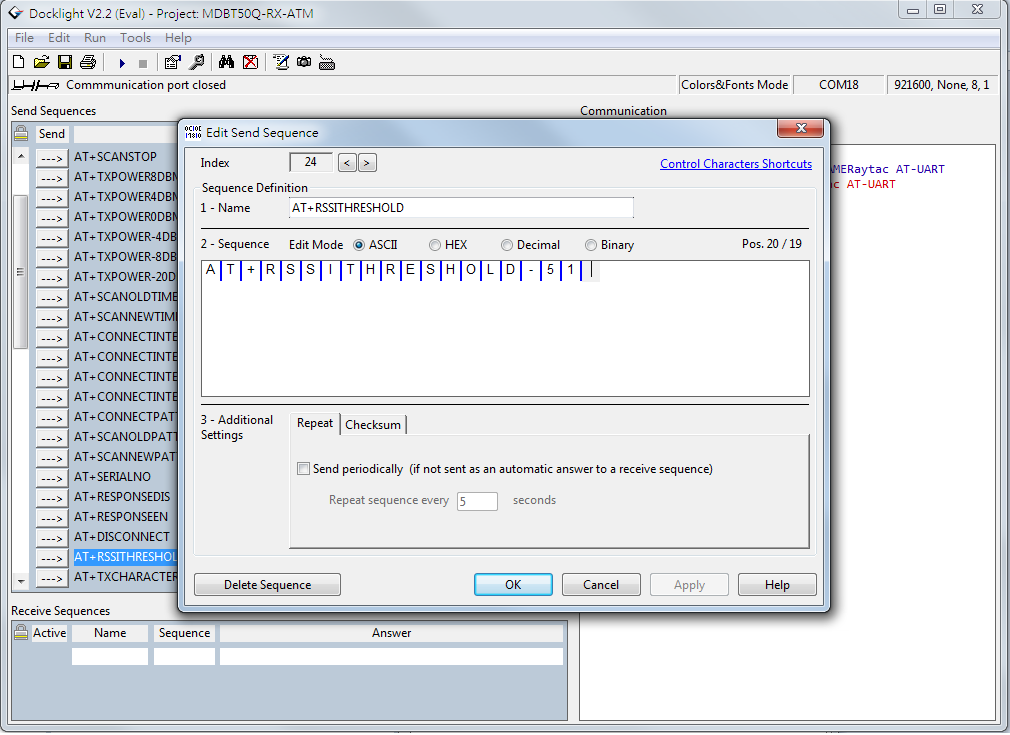
I hate to break it to you, but no... that's not how it works. You will have to at least make sure that the two devices "speak the same language". As for our AT-Command modules/dongles, or in this case MDBT50Q-RX-ATM, it is through a "language" (a.k.a. protocol) called UART.
First of all, "UART" is not "U-ART" although it's kind of pronounced that way, but it's an abbreviation that stands for Universal Asynchronous Receiver/Transmitter. You can read about it here.
I will spare you all the details about the UART protocol itself, but one thing that we will need to make sure of is that you have it installed onto your slave device.
Hopefully, you've downloaded Nordic's latest SDK and you have it ready on your computer. You can download them directly HERE.
Note: This file is quite big (~130MB), so DO NOT click on the last link if you don't want to download this on your current device.
Inside this file, you will find a lot of stuff. However, for this particular case, we only really need to care about the "examples" folder.
In this folder, we will have (surprise surprise!) even more folders :D
As per usual, we don't have to check them all out. In this case, we specifically only want to check the "ble_peripheral" and the "peripheral" folders.
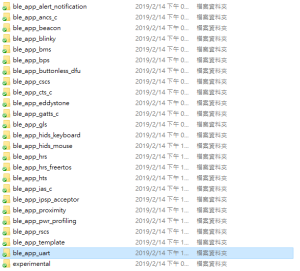
Go into the former folder and you'll find see the following folders in which you will want to enter the "ble_app_uart" folder.:
In this folder, you will see five more folders and two files, but we only want to check out one of them depending on which chip type you're using in your slave device. Let's say you're using a nRF52832 chip (or module such as MDBT42Q-P512KV2), then you'd want to enter the first folder called pca10040. Check the picture below to see which folder you'd want to enter:
Assuming you entered the folder that I mentioned above, you will then want to enter the "s132" folder.
Once you're in here, I am pretty sure you developers out there know what to pick :)
In the beginning of this section, however, I also mentioned another folder called "peripheral" which we will guide you through now - even if it's very similar to what we just did.
As you can see, there are a TON of folders in here, but we will cherry-pick our folders here too.
Let's say that you'd like to be able to make your slave device to read and transmit information from a sensor. Supposedly, most sensors use either the I2C or the SPI interface. In each respective folder, you will find the same folder layout as in the previous picture - folders representing what chip/module you have.
The main point of showing you this is simply because from these two folders, you can snatch the small amount of code that you need to edit the main code of your UART main-code so that you can both read and send the data from the sensor you might have.
Hopefully, you've now started to realize how these things come together and we can finally start to connect these devices. This takes us to the next step:
Once you've done so, your MDBT50Q-RX-ATM's blue LED will hopefully go from fast blinking to a slower blinking. This means that your two devices, master and slave, have now paired successfully. Wohoo! :)
We hope that this makes our AT-Command modules/dongles even easier to use!
Raytac wishes you all happy tinkering :)
Many of our customers just want a device that provides Bluetooth technology to their product or solution that they've developed. However, utilizing the full capacity of the Bluetooth protocol is not always easy and sometimes not even necessary. For these customers, choosing Raytac's modules/dongles loaded with AT Command, such as MDBT50Q-RX-ATM, is the best choice.
But even a product such as MDBT50Q-RX-ATM that is supposed to make it easy for customers to wirelessly transfer data from one device to the next can be difficult to use - especially when you don't know HOW.
So, I thought we'd take this in two simple steps.
- Device Name
For example, if your slave device set to have the name "ILoveBluetooth" and you haven't changed the settings in the AT Command, you will not be able to pair your MDBT50Q-RX-ATM with this device.
As you can see in the picture below, the default setting for this device's name is "Raytac AT-UART".

When editing this name, you get a smaller window like this popping up:

Make sure that the name set on your device that you wish to connect with the dongle AND this name in the AT-Command device's list are the same. You will in this case need to change this to "ILoveBluetooth".
- RSSI
RSSI stands for Received Signal Strength Indicator and, just like the name implies, is a value of strength of which the incoming signal has to be in order to even be considered by the scanning device.
In other words, the lower the value is set to, the weaker signals the scanning device will show.
The standard value of Raytac's AT-Command modules/dongle is -51 and the setting screen looks like this:

- Slave device's SDK
I hate to break it to you, but no... that's not how it works. You will have to at least make sure that the two devices "speak the same language". As for our AT-Command modules/dongles, or in this case MDBT50Q-RX-ATM, it is through a "language" (a.k.a. protocol) called UART.
First of all, "UART" is not "U-ART" although it's kind of pronounced that way, but it's an abbreviation that stands for Universal Asynchronous Receiver/Transmitter. You can read about it here.
I will spare you all the details about the UART protocol itself, but one thing that we will need to make sure of is that you have it installed onto your slave device.
Hopefully, you've downloaded Nordic's latest SDK and you have it ready on your computer. You can download them directly HERE.
Note: This file is quite big (~130MB), so DO NOT click on the last link if you don't want to download this on your current device.
Inside this file, you will find a lot of stuff. However, for this particular case, we only really need to care about the "examples" folder.
In this folder, we will have (surprise surprise!) even more folders :D
As per usual, we don't have to check them all out. In this case, we specifically only want to check the "ble_peripheral" and the "peripheral" folders.
Go into the former folder and you'll find see the following folders in which you will want to enter the "ble_app_uart" folder.:
In this folder, you will see five more folders and two files, but we only want to check out one of them depending on which chip type you're using in your slave device. Let's say you're using a nRF52832 chip (or module such as MDBT42Q-P512KV2), then you'd want to enter the first folder called pca10040. Check the picture below to see which folder you'd want to enter:
Assuming you entered the folder that I mentioned above, you will then want to enter the "s132" folder.
Once you're in here, I am pretty sure you developers out there know what to pick :)
In the beginning of this section, however, I also mentioned another folder called "peripheral" which we will guide you through now - even if it's very similar to what we just did.
As you can see, there are a TON of folders in here, but we will cherry-pick our folders here too.
Let's say that you'd like to be able to make your slave device to read and transmit information from a sensor. Supposedly, most sensors use either the I2C or the SPI interface. In each respective folder, you will find the same folder layout as in the previous picture - folders representing what chip/module you have.
The main point of showing you this is simply because from these two folders, you can snatch the small amount of code that you need to edit the main code of your UART main-code so that you can both read and send the data from the sensor you might have.
Hopefully, you've now started to realize how these things come together and we can finally start to connect these devices. This takes us to the next step:
- ATSCANNEW
Once you've done so, your MDBT50Q-RX-ATM's blue LED will hopefully go from fast blinking to a slower blinking. This means that your two devices, master and slave, have now paired successfully. Wohoo! :)
We hope that this makes our AT-Command modules/dongles even easier to use!
Raytac wishes you all happy tinkering :)
Raytac Corporation 勁達國際電子有限公司 A BT 5.1 & BT 5 & BT 4.2 module maker based on Nordic nRF51 & nRF52 solution (nRF52840 & nRF52832 & nRF52811 & nRF52810 & nRF51822)
| www.raytac.com | email: cs@raytac.com | Tel: +886.2.3234.0208 |
Labels:
AT Command,
Bluetooth,
Bluetooth Low Energy,
Dongle,
MDBT50Q-RX-ATM,
Nordic UART Service,
NUS,
SPP,
UART,
USB,
透傳
Location:
235台灣新北市中和區建康路3號
Subscribe to:
Posts (Atom)