Showing posts with label OTA. Show all posts

Friday, June 20, 2025

nRF52840 Nordic SoC USB Dongle – MDBT50Q-CX-40, Now Supports Zephyr RTOS

[New Taipei City, Taiwan] 

Zephyr RTOS hosted in Linux system has become a leading IoT ecosystem and it has been widely adopted as an open-source , real-time operation system for embedded devices, making it easier for developers to integrate the project smoothly.


Nordic Semiconductor , a main contributor to Zephyr, from the Bluetooth LE controller and USB stack to test tools, DFU frameworks.. and more, is making great effort and strategic decisions to adopt the Zephyr open-source into its nRFConnect(NCS) SDK program.

Raytac Corporation , a hardware-based manufacturer and a comprehensive solution developer with Nordic SoC development for multi-protocol complied wireless modules, now expands support for Zephyr RTOS ecosystem with its nRF52840 USB-C dongle – MDBT50Q-CX-40.

Zephyr support package for MDBT50Q-CX-40: 

https://docs.zephyrproject.org/latest/boards/raytac/mdbt50q_cx_40_dongle/doc/index.html


Reminder: The current Nordic released NCS SDK may NOT upgrade with Zephyr package at the same pace ; It is recommended to get the latest NCS SDK version to access the complete Zephyr support package.

If you’re interested in how Zephyr becomes powerful for a developer to start a project design easier and how the Nordic nRFConnect SDK community brings you to the world of Zephyr RTOS system, never hesitate to save the spot in the upcoming webinar on July 2nd, 2025. How Zephyr became the leading open-source RTOS for IoT (Click on the link to know more)

Resources:
– Begin your journey with Nordic nRFConnect SDK community – nRF Connect SDK Fundamentals
– User Manual of MDBT50Q-CX (nRF52840/nRF52833-based USB-C Dongle)


Edited by Business Development Manager: Ms. Jocelyn Tsai


Raytac Corporation 勁達國際電子股份有限公司 / Raytac Corporation (USA)
A Bluetooth, Wi-Fi, and LoRa Module Maker/ODM & OEM Manufacturer based on
Nordic nRF54; nRF53: nRF52; nRF51; nRF7002
Semtech Specification: SX1262


Bluetooth Specification: BT6.1 ; BT6 ; BT5.4 ; BT5.3 ; BT5.2.
Wi-Fi Specification: Wi-Fi 6
LoRa Specification: LoRaWAN


All products are FCC/IC/CE/Telec/KC/RCM/SRRC/NCC/WPC Pre-Certified.
http://www.raytac.com
https://www.raytac.com/contact/
email: sales@raytac.com
Tel: +886-2-3234-0208(TW)/+1-626-217-3139(USA)

Friday, September 6, 2024

Secure DFU OTA for nRF52832 solution modules: Creating hex/zip file for implementation – Part 2(Combining/merging built files)

 Following up – Part 1: Bootloader & Application (Click for article link),

We will be focusing on:

in this article.

IC: nRF52832
DK: PCA10040 (for nRF52832)
SDK: 16.0.0
Softdevice: s132_nrf52_7.0.1_softdevice.hex
IDE: Keil C
PC: Win 10


Wednesday, August 28, 2024

Secure DFU OTA for nRF52832 solution modules: Guide to create hex/zip file for implementation – Part 1(Bootloader & Application)

Here are the guidelines for users to implement Secure DFU OTA(over-the-air) while using nRF52832 Solution modules. (Click on link for Raytac nRF52832 module series)

Below are the guidelines to implement Secure DFU OTA by using Raytac’s nRF52832 modules, SDK16.0.0.
It consists of 2 parts:

Part 1: Bootloader & Application


Part 2: Combining and merging built files (Article link)

In this article, we will be focusing on Part 1: Bootloader & Application.


Wednesday, June 5, 2024

Secure DFU OTA for nRF52840 solution modules: Guide to create hex/zip file for implementation - #3(Combing & merging built files)

 Following up - Part A: Bootloader (Click for article link) and Part B: Application (Click for article link)

We will be focusing on:

in this article.

IC: nRF52840
DK: PCA10056 (for nRF52840)
SDK: 17.1.0
Softdevice: s140_nrf52_7.2.0_softdevice.hex
IDE: Keil C
PC: Win 10


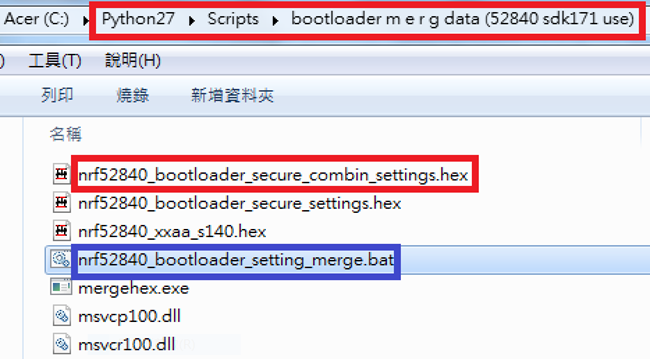
Step 1. Execute the combine batch file in bootloader (nrf52840_bootloader_setting_merge.bat) and generate file of nrf52840_bootloader_secure_combin_settings.hex :

@echo off
title = [ J-Link Tool ] %CD%
set nrfDir=C:\Program Files (x86)\Nordic Semiconductor\nrf5x\bin
set BS= nrf52840_bootloader_secure_settings.hex
set BL= nrf52840_xxaa_s140.hex
set BSBLCombind= nrf52840_bootloader_secure_combin_settings.hex
set path=%nrfDir%;%path%
pause
echo -----------merge image file-------------------
mergehex.exe -m %BS% %BL% -o %BSBLCombind%
pause


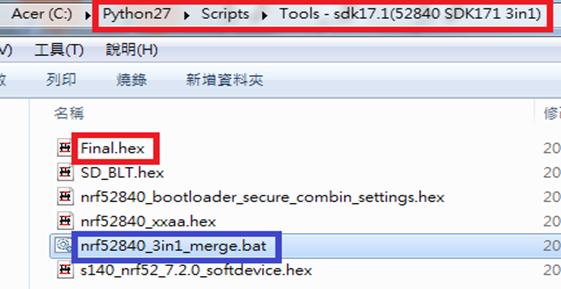
Step 2. Create a Final.hex file by 3-in-1 batch file(nrf52840_3in1_merge.bat)
※Note : This hex file is created for the production line to pre-load firmware into modules prior to shipment.

@echo off
title = [ J-Link Tool ] %CD%
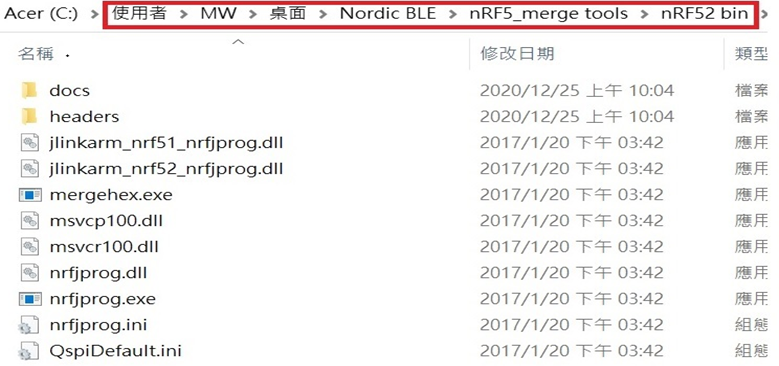
set nrfDir=C:\Users\user\Desktop\Nordic BLE\nRF5_merge tools\nRF52 bin
set SD= s140_nrf52_7.2.0_softdevice.hex
set BLT= nrf52840_bootloader_secure_combin_settings.hex
set APP= nrf52840_xxaa.hex
set SD_BLT=SD_BLT.hex
set Finalfile=Final.hex
set path=%nrfDir%;%path%
pause
echo -----------merge image file-------------------
mergehex.exe -m %SD% %BLT% -o %SD_BLT%
pause
mergehex.exe -m %SD_BLT% %APP% -o %Finalfile%
pause


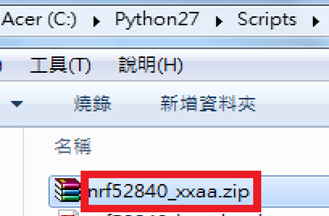
Step 3. Create a DFU(OTA).zip file of nrf52840_xxaa.zip
※Note : This zip file is created for end device DFU(OTA) implementation.

nrfutil pkg generate --hw-version 52 --sd-req 0x100 --application-version 0xFF --application
nrf52840_xxaa.hex --key-file private.pem nrf52840_xxaa.zip

The DFU OTA zip file: nrf52840_xxaa.zip will be derived.


※Note :
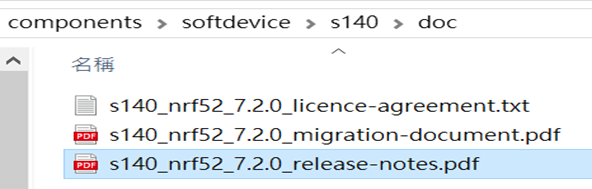
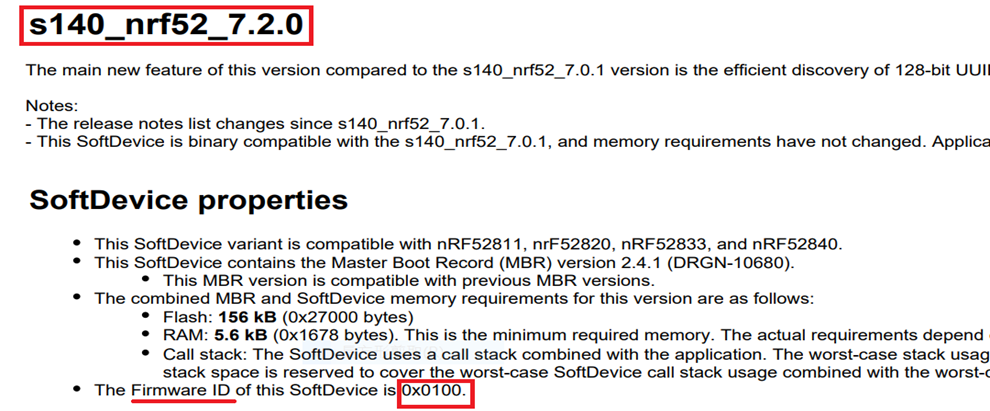
The "0x100" appeared in the above DOS code(in red font) is the FWID(Firmware ID) for s140_nrf52_7.2.0_softdevice.hex;
FWID can be found from the soft device documents on the Nordic website.


Step 4: Run DFU OTA (On mobile in this example)


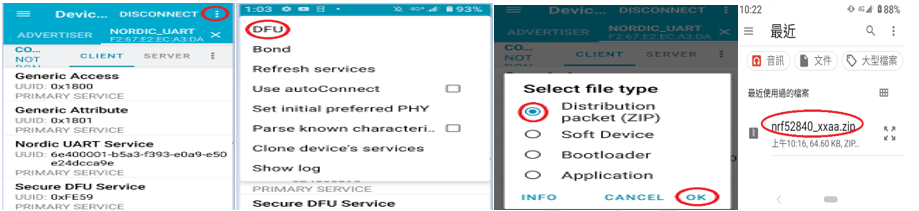
4A. Install the nRF Connect APP on mobile, with DFU OTA file: nrf52840_xxaa.zip. 

       (Download link)


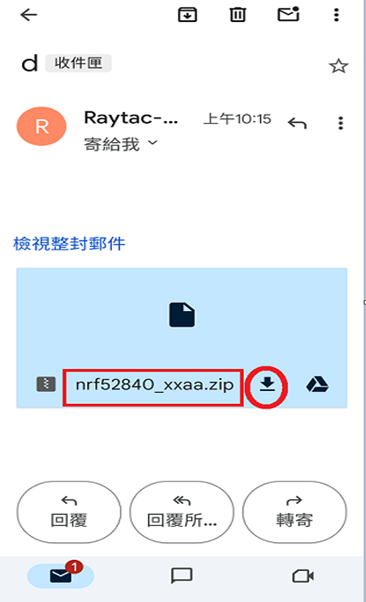
4B. Send nrf52840_xxaa.zip via email to mobile device after combination is done on PC, then download it.


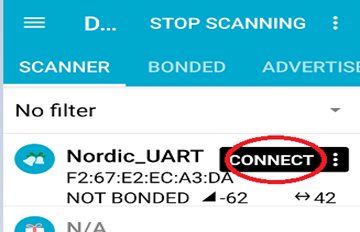
4C. Open nRF Connect APP and run connection;


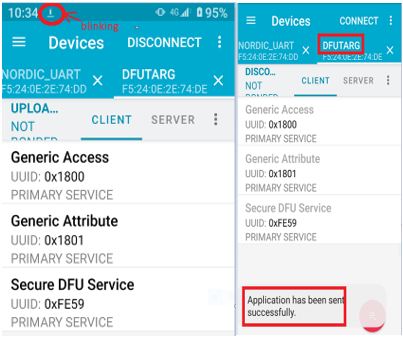
4D. Execute DFU and select "Distribution packet(ZIP)", thus starting the DFU OTA process.


4E. Start DFU OTA → exit the APP after DFU OTA is completed → restart the mobile device.


Secure DFU OTA for nRF52840 solution modules: Guide to create hex/zip file for implementation
Detailed links of articles:
Part A: Bootloader (Click for article link)
Part B: Application
(Click for article link)
Part C: Combining and merging built files
(Click for article link)


Technical guidelines provided by R&D Manager: Mr. MW Lee
Edited by Sales Manager: Mr. Tony Yin

Raytac Corporation 勁達國際電子股份有限公司 
Bluetooth & WiFi module maker based on Nordic nRF54, nRF53, nRF52, nRF7002 solution
BT5.4 &BT5.3 & BT5.2 & BT5.1 Qualified, FCC/IC/CE/Telec/KC/RCM/SRRC/NCC Pre-Certified.
Bluetooth Solution: nRF54, nRF5340, nRF52840, nRF52833, nRF52832, nRF52820, nRF52811, nRF52810, nRF52805, nRF51822
WiFi Solution: nRF7002

Wednesday, May 29, 2024

Secure DFU OTA for nRF52840 solution modules: Guide to create hex/zip file for implementation - #1(Bootloader)

Here are the guidelines for users to implement Secure DFU OTA(over-the-air) while compiling using nRF52840 Solution modules. 

(Click on link for Raytac nRF52840 module series)

Below are the following steps to implement Secure DFU OTA by using nRF52840 chip set, SDK17.1.0.
It consists of 3 parts:

Part C: Combining and merging built files (Will be released after Part B)

In this article, we will be focusing on Part A: Bootloader.

Secure DFU OTA for nRF52840 solution modules: Guide to create hex/zip file for implementation - #2(Application)

Following up-Part A: Bootloader (Click for article link)

We will be focusing on:

in this article.

IC: nRF52840
DK: PCA10056 (for nRF52840)
SDK: 17.1.0
Softdevice: s140_nrf52_7.2.0_softdevice.hex
IDE: Keil C
PC: Win 10


Path: nRF5_SDK_17.1.0_ddde560\examples\ble_peripheral\ble_app_uart\pca10056\s140\arm5_no_packs

Before building Application code , some amendments need to be made regarding DFU-related settings and code inside Application:

Step 1.

1A. Add code in definition in C/C++ :
BL_SETTINGS_ACCESS_ONLY NRF_DFU_SVCI_ENABLED NRF_DFU_TRANSPORT_BLE=1
(Total 3 steps definitions need to be set up)


1B. Add “include path” in C/C++


1C. Add the .c files inside red frame in (Screenshots 1 & 2)
and the 2 groups of (nRF_DFU & nRF_SVC)(Screenshot 3) under Project(Screenshot 4)


1D. Add code into main.c file in Application (..\examples\ble_peripheral\ble_app_uart\main.c)
(Please refer to: main.c file at: ..\examples\ble_peripheral\ ble_app_buttonless_dfu)


1E. The code of file: sdk_config.h (..\examples\ble_peripheral\ble_app_uart\pca10056\s140\config\
sdk_config.h) inside Application needs to be modified.


1F. Adjust the IRAM1 value in Target after implementing DFU service:

Check on the IRAM1 Value of *p_app_ram_start to be modified from default: 0x20002AE8 0x3D518 to 0x20002AF8 0x3D508, as shown in the red frame in the bottom right corner.
In this case, the program should run successfully.


1G: Create a file of: nrf52840_xxaa.hex after building application code files.


Step 2. Create a bootloader setting file of nrf52840_bootloader_secure_settings.hex : (via DOS)

nrfutil settings generate --family NRF52840 --application nrf52840_xxaa.hex --application-version 3 -- bootloader-version 2 --bl-settings-version 1 nrf52840_bootloader_secure_settings.hex --no-backup


※Stay tuned for #3 – Part C: Combining and merging built files in the next article,

scheduled release in next week(05/06/2024).


Technical guidelines provided by R&D Manager: Mr. MW Lee
Edited by Sales Manager: Mr. Tony Yin

Raytac Corporation 勁達國際電子股份有限公司  A company of Abietec
Bluetooth & WiFi module maker based on Nordic nRF54, nRF53, nRF52, nRF7002 solution
BT5.4 &BT5.3 & BT5.2 & BT5.1 Qualified, FCC/IC/CE/Telec/KC/RCM/SRRC/NCC Pre-Certified.
Bluetooth Solution: nRF54, nRF5340, nRF52840, nRF52833, nRF52832, nRF52820, nRF52811, nRF52810, nRF52805, nRF51822
WiFi Solution: nRF7002
http://www.raytac.com
email: service@raytac.com
Tel: +886-2-3234-0208

Friday, February 7, 2020

Firmware Coding & DFU onto MDBT50Q-RX

Hi there, 

Here introduce the firmware perspective about how to program your code onto MDBT50Q-RX dongle.

Believed all readers have done the hardware setting and now has well prepared to load the code onto the dongle. (If not yet done the hardware setting, pls find it here)

In this blog, we will introduce the procedure based on below 2 scenarios
  • First time to load the code
  • DFU Firmware update by USB or OTA (through Bluetooth over the air)

First time to load the code:

1. Generate Public Key

For security reason, Public Key is the first step to proceed (DOS Environment MUST)
   Command to produce Public Key is in below:

      nrfutil keys generate public_key.pem
nrfutil keys display --key pk --format code public_key.pem --out_file public_key.c

2. Edit Bootloader (Use Keil C as the example)
    2.1 Open a project

\nRF5_SDK_15.3.0_59ac345\examples\dfu\secure_bootloader\pca10056_ble

    2.2 Paste the Public Key produced from step 1 in the red square.

    2.3 Set up Button behavior to trigger the Bootloader function start
    2.3.1 Activate to enter the Bootloader function by using button pressed. (Developers may change to others if don't like this way. Just enter "secure_bootloader" project and modify "sdk_config.h")


    2.3.2 Modify button pin no. (Developers can modify "sdk_config.h" in "secure_bootloader" project)


    2.3.3 Modify LED pin no. (Developers can modify "pca10056.h" in "secure_bootloader" project)


3. Edit Application
   Open and edit the project

\nRF5_SDK_15.3.0_59ac345\examples\peripheral\usbd_ble_uart\pca10056\s140\arm5_no_packs

4. Generate bootloader_settings.hex file

nrfutil.exe settings generate --family NRF52840 --application USBD_TO_UART.hex --application-version 3 --bootloader-version 2 --bl-settings-version 1 bootloader_settings.hex

5. Merge files
1Bootloader.hex
2bootloader_settings.hex
3s140_nrf52_6.1.1_softdevice.hex
4USBD_TO_UART.hex
mergehex.exe -m Bootloader.hex bootloader_settings.hex -o Combind0.hex
mergehex.exe -m Combind0.hex s140_nrf52_6.1.1_softdevice.hex -o Combind1.hex
mergehex.exe -m Combind1.hex USBD_TO_UART.hex x -o USBD_TO_UART_BT_SD_APP.hex


6. Use nRFconnect to burn the merged code onto dongle (nRF52840 IC)
Launch the programmer

Load the merged .hex file
Program the .hex file


Right here, the code should be loaded onto dongle successfully.
Hope all you guys enjoy the journey and completed the setup.

In case you are not happy about the code you just loaded?
No worry, we now introduce DFU process in below to retrieve your happiness.